
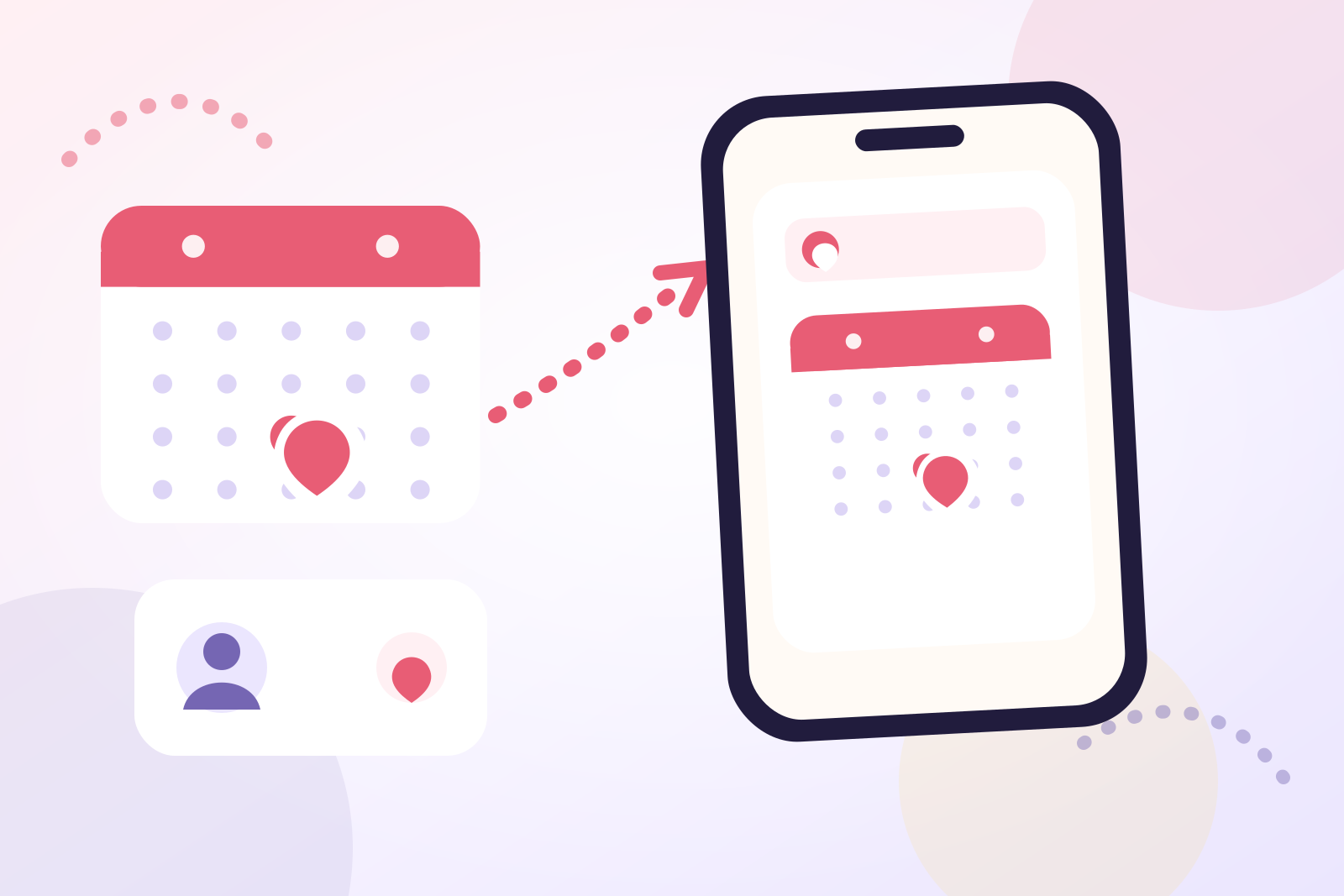
If you want to move Google contact birthdays to iPhone, there are two dependable routes. Add your Google account under Settings, tap Apps, then Contacts, then Contact Accounts, then Add Account, and turn Contacts on. The birthdays saved in Google Contacts then appear on the contact cards in your iPhone's Contacts app. If you are leaving Google behind, export a vCard from Google Contacts on a computer, import it into contacts at iCloud.com, and the dates become permanent Apple contacts that survive without the Gmail account.
This guide walks through both routes, shows how to make the dates visible and alerted in Calendar, and covers the cleanup that makes a migrated birthday list trustworthy.
Know what syncing changes before you pick a route
Syncing and moving are different operations, and choosing deliberately saves you from doing both.
Syncing connects your Google account to the iPhone. Google's own documentation for iOS describes adding the account under Settings, then Contacts, then Add account, then Google, and choosing which Google apps to sync. The contact cards, including birthday fields, then live in the Contacts app under the Google account. Nothing is copied: Google remains the source of truth, edits flow in both directions, and if you later remove the account, those synced contacts leave the phone with it.
Moving means the dates end up stored as Apple contacts, usually in iCloud. The dates no longer depend on the Google account at all.
Google Calendar also maintains its own Birthdays calendar. According to Google, birthday information syncs into that calendar whenever a Google contact has a birthday saved, and on iPhone you can hide it, recolor it, or turn off Sync from Contacts per account. That works inside the Google Calendar app, which is a separate question from what Apple's Calendar app displays.
| Route | Best when | What you end up with |
|---|---|---|
| Sync the Google account | You still use Gmail daily and want no manual work | Google birthdays visible in the Contacts app and Google Calendar app |
| One-time vCard move | You are switching to iCloud or want Google out of the loop | Permanent Apple contacts with the dates attached |
| Curated rebuild | Only 10–20 birthdays genuinely matter to you | A short, verified list with no legacy clutter |
Method 1: Sync the Google account to your iPhone
This is the fastest path because there is nothing to export. Google's iOS sync instructions, matched with Apple's account setup guide, work out to these steps:
- Open the Settings app on your iPhone.
- Tap Apps, then tap Contacts (on some iOS versions, scroll down to Contacts directly in Settings).
- Tap Contact Accounts, then tap Add Account.
- Tap Google and sign in with your Google Account.
- Choose which Google apps to sync with the device, making sure Contacts is switched on, then save.
- Open the Contacts app and give it a minute to pull the cards down.
Once synced, open a few contact cards and check that the birthday field carried over. Birthdays saved in Google Contacts become visible in the Google Calendar app on iPhone too, where they appear on the Birthdays calendar alongside any other calendars you have enabled.
The trade-off is dependency. You now have two address books on one phone, and the Google one changes whenever the server copy does. That is convenient while you use Gmail and limiting once you stop.
Method 2: Move the dates once into iCloud contacts
Choose this route if your plan is to stop relying on Google, or if you want birthdays to survive removing the Gmail account entirely. You need a computer for about five minutes.
- On the computer, go to Google Contacts in a browser.
- Select the contacts you want to transfer: check individual names, or check one box and choose All for the full address book.
- Click More actions, then Export, and choose the vCard format from the export options.
- Save the exported file somewhere you can find it. This file doubles as a backup of your Google address book.
- Sign in at iCloud.com, open Contacts, and import the vCard. Apple's iCloud guide documents importing contacts from a vCard on iCloud.com.
- Wait for iCloud to sync to your iPhone, then spot-check five or six contact cards in the Contacts app, paying attention to the birthday fields.
Two practical notes. First, a bulk export moves everything, including old work contacts you may not want on your phone, so consider exporting only a selection if your Google Contacts list has grown unchecked. Second, keep the vCard file after the move. If anything looks wrong later, the original data is still in your hands.
After you confirm the dates landed, you can remove the Google account from the iPhone without losing the birthdays, because they now live in iCloud.
Method 3: Rebuild a short list by hand
A full migration sounds thorough, but most people genuinely celebrate a fraction of their contacts. If your Google address book holds hundreds of names and only a dozen birthdays matter, the honest move is a rebuild:
- List the people you would personally call, message, visit, or buy a gift for.
- Confirm each date before saving it, especially any copied from an old profile years ago.
- Add those people directly to Apple contacts, or straight into a reminder app.
- Keep the Google account unsynced so the uncurated list never lands on the phone.
Our guide to remembering birthdays without Facebook or social media covers this curated approach in detail, including why ten reliable entries beat two hundred uncertain ones. It pairs well with this article: this page handles the mechanics of getting dates onto the iPhone, and that one handles deciding which dates deserve to be there.
Make the birthdays show up and alert you in Calendar
Once dates are on the iPhone, either synced or moved, they can surface in Calendar.
For birthdays stored in your Apple or iCloud contacts, Apple's Calendar can display a Birthdays calendar drawn from your contacts. Alert timing is set in one place: open Settings, tap Apps, then Calendar, then Default Alert Times, and choose when the Birthdays alert fires. That single default applies to every birthday in the calendar.
If you keep using the Google Calendar app on iPhone, birthdays imported from Google Contacts sit on Google's Birthdays calendar there. Google's documentation notes that you can manage these birthdays per account under the calendar's Birthdays settings, including turning off Sync from Contacts, and that birthdays pulled in from Apple contacts use default notification settings, which you can change under the From Device account label.
Be aware of what a default alert is and is not. It prevents complete forgetting on the day. It does not give you a week to post a card, order a gift, or book a table, and one global setting cannot vary between a same-day text and a milestone dinner that needs a month of coordination.
Turn migrated dates into reminders with room to prepare
A birthday date on a contact card is a fact. A reminder with a lead time is an action plan. The gap between them is where most birthday reminders fail after a migration.
The dependable pattern is two alerts with different jobs: one preparation alert early enough for the intended gesture, and one final alert on the day. How early the first alert should be depends on the action, which our birthday reminder timing guide breaks down by lead time, from same-day messages to international delivery and travel.
Built-in tools cap out here, because a default alert time applies the same schedule to every birthday. This is where a dedicated app earns its place. Birthday Reminder imports from your iPhone contacts, so the dates you just moved can be brought across by choosing the specific people you want, without a full address book dump. Each person then gets flexible reminder schedules instead of one global default, plus countdowns, notes for context such as a time zone or gift idea, and Home and Lock Screen widgets that keep the next birthdays visible. The app works without an account, and the dates stay private on your device.
Migrate first, then decide. If the default alerts prove sufficient for your rhythm, nothing more is needed. If you keep dismissing a birthday alert because it arrives when nothing can be done, that is the signal for flexible schedules.
Clean up the list before you rely on it
A migration is the ideal moment for a short audit, because problems multiply quietly afterward.
- Duplicates. If you synced Google and also imported a vCard, some people now exist twice. Decide which system owns each contact and remove the other copy, or the same person will alert you twice, possibly on different days if the two cards hold different dates.
- Unverified dates. Dates entered years ago from memory deserve a check against a family record or a direct question before they anchor your yearly plans.
- Unknown years. If the birth year was never recorded, save the month and day rather than guessing an age.
- Dead entries. Old colleagues and forgotten acquaintances add noise. Drop them during the move rather than carrying them forward.
Then keep the list honest with a small habit: once a month, review the next six weeks of birthdays. Our three-stage birthday planning system explains the remember, prepare, and celebrate workflow that keeps a migrated list useful all year.
Common problems and fixes
Google contacts stop syncing. Google's iOS documentation points to the SSL setting: open Settings, tap Apps, then Contacts, then Accounts, select the Google account, and confirm Contacts is on and Use SSL is enabled under the account's advanced settings.
Birthdays are missing from Apple Calendar. Apple's Birthdays calendar draws on birthdays saved in your contacts, and it behaves most reliably with dates stored in iCloud. If a birthday only exists on a Gmail-synced card, copy the date onto the iCloud contact card for that person so it appears where you expect.
The same person appears twice after importing. That is the sync-versus-move collision from Method 1 and Method 2 overlapping. Pick one home for each contact and delete the other card.
Birthdays vanished after removing the Gmail account. They were synced, not moved, so they left with the account. Re-add the Google account to recover them, or redo the transfer using the vCard method so the dates live in iCloud permanently.
Frequently asked questions
Will my Google birthdays disappear if I delete the Gmail account from my iPhone?
If the birthdays only exist on Google-synced contact cards, yes, they leave with the account. To keep them, export a vCard from Google Contacts first, import it at iCloud.com, and verify the dates appear on Apple contacts before removing the account.
Why don't my Gmail contact birthdays show in Apple Calendar?
Google's birthdays reliably surface in the Google Calendar app's own Birthdays calendar, but Apple's Birthdays calendar works from birthdays saved in your contacts and is most dependable for iCloud-stored dates. The practical fix is to save the birthday on the person's iCloud contact card, after which Apple's calendar and default alert settings apply to it.
Should I sync my whole Google account or move only the birthdays?
Sync if you actively use Gmail and want your full address book available on the iPhone. Move with a vCard if you only care about a set of birthdays or are leaving Google behind. A third option is a curated rebuild of the handful of birthdays you actually celebrate.
Can I keep Google and iPhone birthdays in sync after moving to iCloud?
You can leave the Google account synced for contacts while also keeping the iCloud copies, but then the same birthday exists in two places and can drift apart when one is edited. Choose one source of truth. Most people either let Google keep owning the data, or complete the vCard move and stop syncing Google contacts altogether.
Moving birthdays out of Google is mostly a one-hour project: sync or export, verify a sample of dates, clean up duplicates, then set alert timing that matches how early you actually prepare. Browse the other Birthday Reminder guides for the planning systems that build on top of a clean list, or see the Birthday Reminder app page for how contact import, flexible alerts, countdowns, and widgets fit this workflow.



