
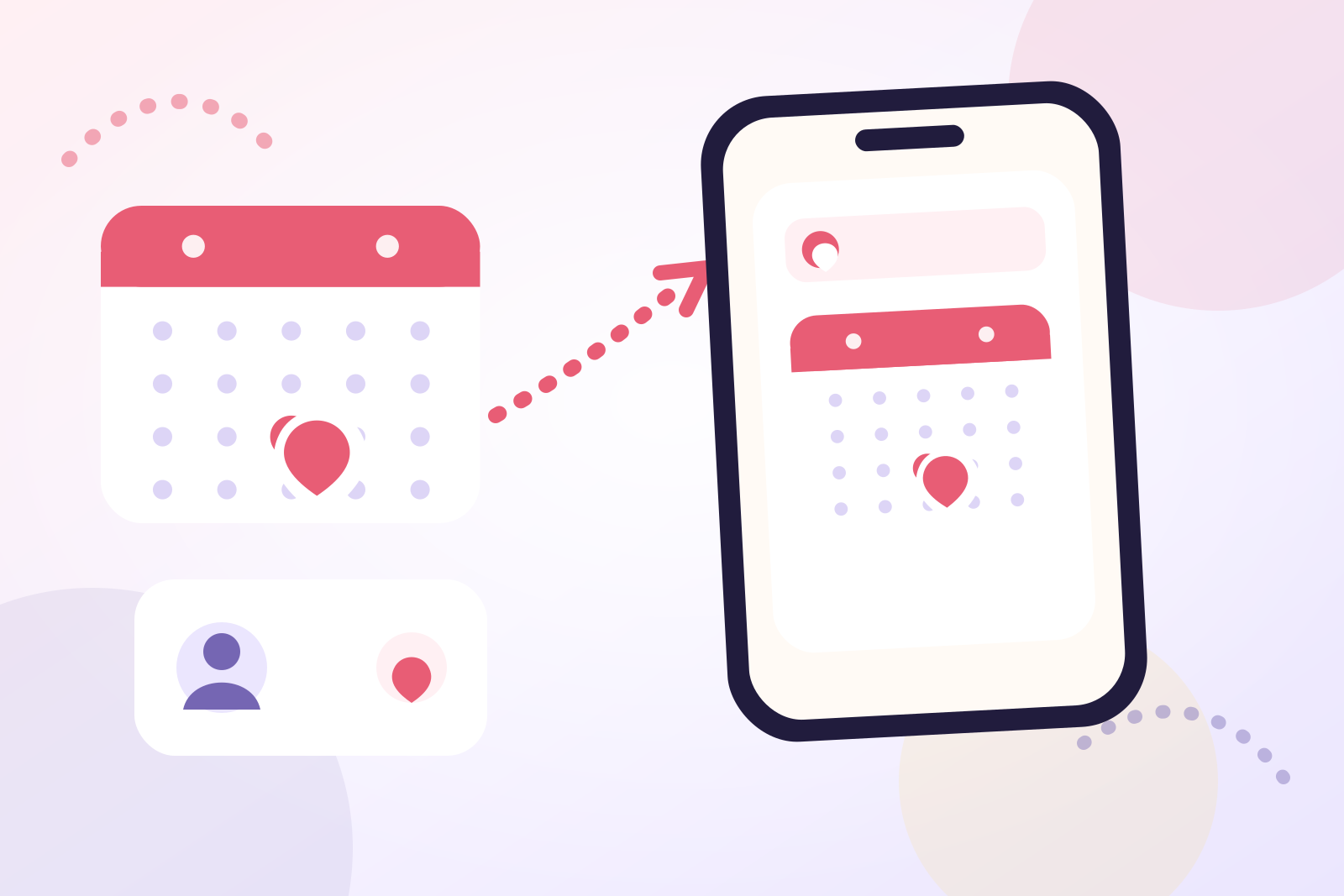
To create a private birthday calendar on iPhone, make a separate iCloud calendar, leave it unshared, and add each birthday as a yearly all-day event. Before relying on it, check that the calendar has no participants and is not published as a public calendar.
This creates a calendar that syncs to devices using your Apple Account without placing birthday entries on a family, work, or other shared calendar. It is different from Apple's built-in Birthdays calendar, which is generated from Contacts.
Choose the right kind of private calendar
“Private” can describe three different setups:
| Setup | Where dates come from | Main privacy consideration |
|---|---|---|
| Dedicated iCloud calendar | Yearly events you add manually | Syncs through your Apple Account; remains unshared unless you enable sharing |
| Built-in Birthdays calendar | Birthday fields in Contacts | Automatically includes saved contact birthdays rather than a curated manual list |
| Dedicated birthday app | Dates entered manually or imported selectively | Privacy depends on the app's storage, account, analytics, and contact-access practices |
A dedicated iCloud calendar is the best fit when you want birthdays in Apple Calendar but need them separated from existing calendars.
The built-in Birthdays calendar is easier when your Contacts are already accurate. If that is your goal, follow the complete guide to adding birthdays to iPhone Calendar and enabling reminders. This guide instead focuses on creating and auditing a manually maintained private calendar.
Create a dedicated calendar on iPhone
Apple documents the following process for creating an iCloud calendar:
- Open Calendar on your iPhone.
- Tap Calendars at the bottom of the screen.
- Tap Add Calendar, then Add Calendar again.
- Enter a clear name such as Birthdays — Private.
- Choose a color that is not already used by a family or work calendar.
- Tap Done.
Creating the calendar and sharing it are separate actions. Do not add anyone under Shared With, and do not enable Public Calendar.
An iCloud calendar can appear on your other devices when Calendar is enabled for the same Apple Account. That is private from other calendar users, but it is not confined to one iPhone. Review every device signed in to your account if device-level access matters.
Add each birthday as a yearly event
Use one consistent format so the calendar remains easy to scan:
- In Calendar, tap the add button.
- Enter a short title such as Alex's birthday.
- Turn on All-Day.
- Select the birthday date.
- Set Repeat to Every Year.
- Tap Calendar and choose Birthdays — Private.
- Add an alert only if you want Calendar to notify you.
- Tap Add.
Check the selected calendar before saving every event. iPhone can preselect a default calendar, which may be a personal, family, or work calendar rather than the private birthday calendar.
A yearly event is independent of Contacts. If a name or date changes, edit the event itself. Avoid also saving the same birthday in Contacts unless you intentionally want it to appear in Apple's separate Birthdays calendar.
For planning lead times, use the birthday reminder timing guide rather than assigning several identical alerts to every event.
Audit both kinds of calendar sharing
Private and public sharing require separate checks.
Check private participants on iPhone
- Open Calendar and tap Calendars.
- Tap the info button beside your private birthday calendar.
- Look for people under Shared With.
- If someone is listed, tap their name and choose Stop Sharing.
Apple also allows the calendar owner to turn a participant's editing permission on or off. Read-only access still allows that person to see birthday entries, so remove the participant when the goal is a calendar visible only to you.
Check for public sharing
Apple permits an iCloud calendar to be published through a link. On a tablet or computer, sign in to Calendar on iCloud.com, open the calendar's information panel, and make sure Public Calendar is off.
An empty participant list does not address a public link. Confirm both settings:
- No private participants.
- No public calendar link.
If you need to share an individual birthday plan later, invite people to that event or use a separate planning calendar. Do not share the entire birthday list for one occasion.
Understand the built-in Birthdays calendar
Apple Calendar also includes a special Birthdays calendar. On iPhone, it displays birthdays from Contacts alongside other events. On iCloud.com, Apple states that the Birthdays calendar can show birthdays saved in iCloud Contacts.
This special calendar is not the dedicated calendar you just created:
- Its entries come from contact cards.
- Birthday changes are made in Contacts.
- Apple says its name and color cannot be changed.
- It is not a manually curated list of selected yearly events.
Showing the Birthdays layer does not copy those dates into your private calendar. Likewise, hiding it does not delete birthdays from Contacts.
If you want to diagnose that Contacts-powered layer, use the guide to showing birthdays from Contacts in iPhone Calendar. Keeping that topic separate prevents two sources of truth from becoming confused.
Store only what the reminder needs
Calendar privacy also depends on what appears in event titles, notifications, searches, and widgets.
Use a restrained record:
- First name or familiar nickname.
- Correct month and day.
- One useful alert.
- A short action note, if necessary.
Avoid adding addresses, private family history, financial details, health information, or long gift notes to an event. A locked phone can still show notification previews depending on your settings, and a calendar widget may expose upcoming event titles to anyone looking at the screen.
If discretion matters, review notification preview settings and avoid placing the calendar in a visible widget. A private calendar prevents calendar sharing; it does not prevent someone nearby from reading an unlocked screen.
Move birthdays out of a shared calendar
If birthdays already appear on a family or work calendar, migrate them carefully:
- Open an existing birthday event.
- Confirm whether it is a normal event or a generated Contacts birthday.
- For a normal event, change its Calendar field to your private birthday calendar.
- Check that the yearly repeat and date remain correct.
- Search the old calendar for duplicates.
Apple documents moving an event by opening it, tapping Calendar, and selecting another calendar.
A generated entry in the built-in Birthdays calendar cannot be moved in the same way because its source is Contacts. Either leave it there or create a separate yearly event in the private calendar, then hide the Birthdays layer if you do not want both displayed.
If your dates are scattered across social platforms and message threads, build a verified list without social media first.
When a dedicated app is more private
A synced iCloud calendar may not suit someone who wants birthday records kept outside every general calendar account.
Daily Life Apps publishes Birthday Reminder, an account-free app that stores added information locally on the device. It supports countdowns, flexible reminder schedules, notes, and Home and Lock Screen widgets. Contact access is optional: when you choose to import, you review available birthdays and select the people to add.
The published product information does not promise continuous Contacts synchronization, so verify later date changes in both places if you import.
Local storage is not a substitute for basic device privacy. Use a device passcode, store minimal notes, and avoid a visible widget if names or dates should not appear on the screen.
For a fuller feature trade-off, read Birthday Reminder app versus Apple Calendar.
Use this private-calendar checklist
Before treating the setup as complete, confirm:
- The calendar belongs to your personal iCloud account.
- It has a distinct name and color.
- No participants appear under Shared With.
- Public Calendar is off.
- Every birthday repeats yearly.
- Every event is assigned to the private calendar.
- Old copies have been removed from shared calendars.
- Titles and notes contain no unnecessary personal details.
- Notification previews and widgets match your privacy preference.
Repeat the sharing and device checks after changing accounts, joining calendars, or replacing your phone.
Frequently asked questions
Is a new iCloud calendar shared automatically?
Apple presents sharing as a separate action performed by the calendar owner. After creation, verify that no one appears under Shared With and that Public Calendar is off rather than relying only on an assumption.
Can family members see my private birthday calendar?
They can see it if you share that specific calendar with them or if their device is signed in to your Apple Account. Do not add private birthday events to a calendar that already lists family members as participants.
Is the built-in Birthdays calendar the same thing?
No. The built-in Birthdays calendar displays dates from Contacts. A dedicated calendar contains ordinary yearly events that you choose and maintain manually.
Can I make only some Contacts birthdays appear?
Apple's built-in Birthdays calendar is not designed as a manually curated subset. For a selected list, create yearly events in a dedicated calendar or add selected people to a birthday app.
Does a private birthday calendar require an Apple Account?
The iCloud method in this guide does. If you do not want the list tied to a calendar account, use a local app that works without an account and review its current privacy information first.
How can I tell whether a calendar is public?
Open Calendar on iCloud.com from a tablet or computer, select the calendar's information panel, and check the Public Calendar setting. Turn it off if you do not want the calendar accessible through a link.
A private birthday calendar works best when it has one clear owner, no sharing links, and only the information needed to act. Browse the other Birthday Reminder guides for reminder timing and planning advice, or read our editorial policy to see how product and setup claims are reviewed.



