The search phrase private habit notifications iPhone points to one practical goal: keep a sensitive reminder off shared screens without losing every useful prompt.
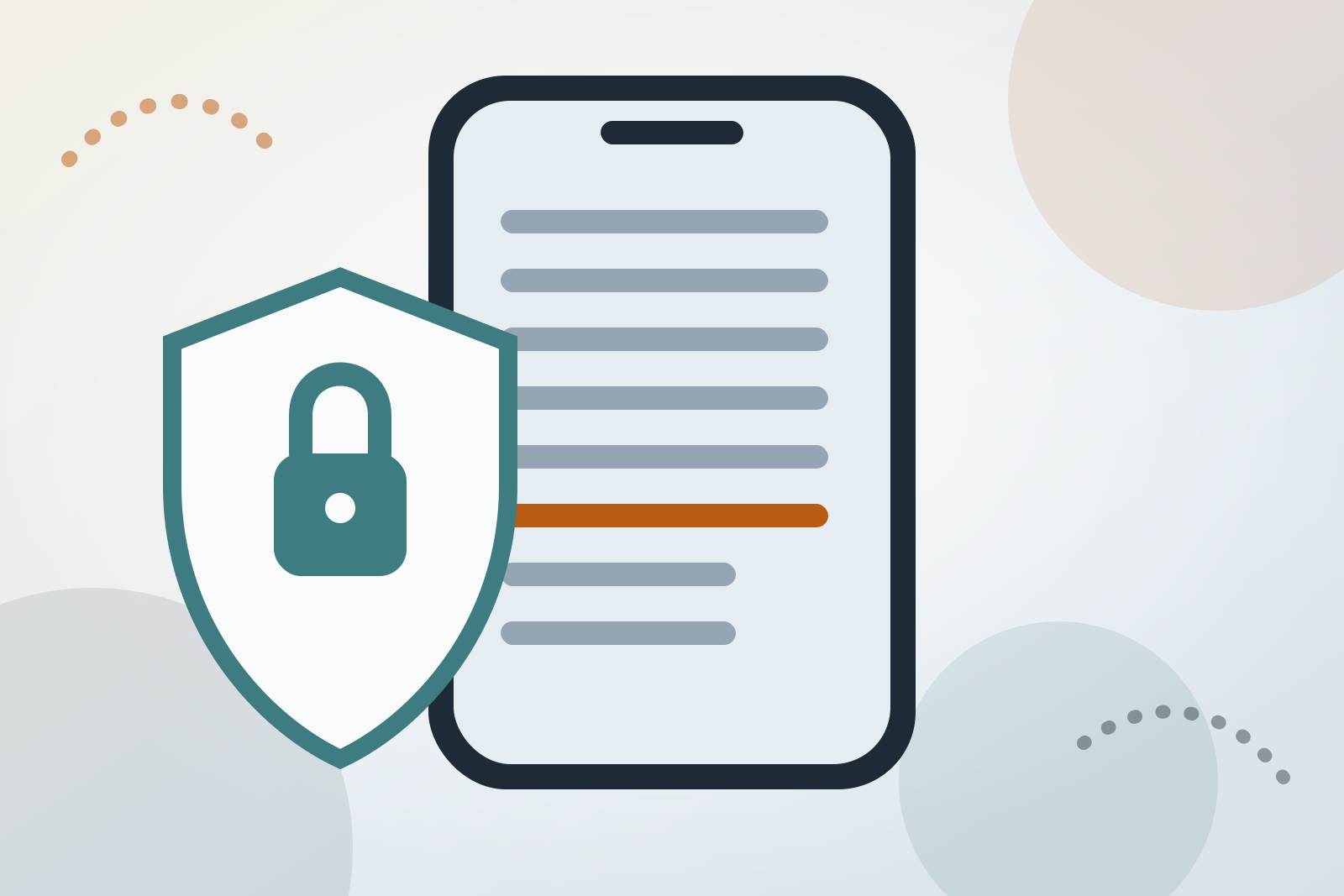
Start with three controls. Open Settings > Notifications > [habit app], set Show Previews to Never, turn off Lock Screen, and turn off Banners. Leave Notification Center on if you want to check reminders privately later.
That hides the message and prevents visible interruptions. It may not hide the app name. If the app's identity alone reveals too much, turn off Allow Notifications and open the app manually.
Choose the privacy level you actually need
Different settings solve different problems:
| What you want to prevent | Setting to use | Important limit |
|---|---|---|
| Other people reading the reminder | Show Previews: Never | The app may still be identified |
| Alerts appearing on a locked phone | Lock Screen: Off | Notifications may remain elsewhere |
| Alerts interrupting another activity | Banners: Off | Notification Center can still hold them |
| A visible app name or icon in any alert | Allow Notifications: Off | You lose all notifications from that app |
| Someone opening the records | App lock | This does not remove widgets or every sign that the app exists |
| Alerts appearing during certain hours | Focus | Focus manages interruptions, not every privacy surface |
Use the narrowest setup that meets your needs. You can preserve reminders without placing them on the Lock Screen, but there is no documented iPhone setting that keeps a visible alert while guaranteeing that its sending app remains anonymous.
Hide the notification text
Apple provides three preview choices: Always, When Unlocked, and Never. It also notes that not every app supports previews.
For one habit app:
- Open Settings.
- Tap Notifications.
- Select the app.
- Tap Show Previews, if available.
- Choose Never.
You can also set a phone-wide default under Settings > Notifications > Show Previews, then override it for individual apps.
Treat When Unlocked as a convenience setting, not the strongest privacy setting. It permits preview content after authentication. Choose Never when you do not want the reminder wording displayed at all.
Preview controls cover content such as message text. Do not assume they conceal the app name or icon.
Control every place the alert can appear
In Settings > Notifications > [app], Apple lets you choose among three alert locations:
- Lock Screen
- Notification Center
- Banners
For private reminders that you still want to receive, turn off Lock Screen and Banners, then leave Notification Center on. Turn off Badges if a red count on the app icon would invite questions. Review the sound control as well if an identifiable alert tone could disclose the reminder.
Apple's Count display style shows the number of waiting notifications on the Lock Screen instead of a list. It can reduce casual exposure across the phone, but it does not replace the per-app controls above.
You can also prevent someone from opening Notification Center while the phone is locked. Go to Settings > Face ID & Passcode or Touch ID & Passcode, enter the passcode, and turn off Notification Center under Allow Access When Locked.
For a temporary change, swipe left on one of the app's notifications, tap Options, and mute it for an hour or a day. Apple says this sends those alerts directly to Notification Center without a Lock Screen entry, banner, sound, or screen illumination.
Turn notifications off if the app name is sensitive
Setting Show Previews to Never does not promise to hide which app sent the alert. This distinction matters when a tracker has a recognizable name or icon.
If revealing the app would reveal the habit, the reliable choice is:
- Go to Settings > Notifications > [app].
- Turn off Allow Notifications.
- Choose a private time to open the app and check it manually.
This is a real trade-off. No notification means no reminder, including any warning that would otherwise arrive before a difficult hour.
A less restrictive option is to keep Notification Center enabled while disabling the Lock Screen and banners. That prevents an alert appearing unexpectedly, but someone using your unlocked phone could still open Notification Center.
Lock or hide access to the app
Notification privacy does not protect records inside an unlocked app. If the option is available, touch and hold the app on the Home Screen and tap Require Face ID, Require Touch ID, or Require Passcode.
Apple says information inside a locked app does not appear in locations such as notification previews, search, Siri suggestions, CarPlay, or call history. The app requires authentication to open and locks again after you quit it.
This protects app content. Apple does not say that locking an app always conceals the app's name in an alert, so keep the notification controls in place.
For downloaded apps, Hide and Require Face ID removes the app from the Home Screen, normal App Library listings, and search. It moves the app to an authenticated Hidden folder in App Library. Hiding applies only to that iPhone and does not sync through iCloud.
Preinstalled apps cannot be hidden. Apple also notes Family Sharing limits: children under the applicable minimum age cannot lock or hide apps, while a parent or guardian may still see download and usage information for older children in the family group.
Use Focus as a schedule, not the only privacy barrier
A Focus can silence selected apps during work, family time, meetings, or other shared situations:
- Open Settings > Focus.
- Choose or create a Focus.
- Tap Apps.
- Select Silence Notifications From.
- Add the habit app.
Check Time Sensitive Notifications. When enabled, Apple says all apps can deliver eligible time-sensitive notifications immediately, which may defeat the schedule you intended.
Focus Status is another separate setting. If sharing is enabled, contacts using supported apps may see that you have notifications silenced. It does not identify the habit app, but you can turn the status off under Settings > Focus > Focus Status.
Do not silence important people by accident. Apple lets you enable Emergency Bypass for a contact under that person's Ringtone or Text Tone settings so their sounds and vibrations can come through when notifications are silenced.
Check widgets, screen sharing, and other devices
Notifications are only one visible surface.
Widgets: Apple warns that widgets can display sensitive information in highly visible places, particularly on Lock Screens and Always On displays. Remove a habit widget instead of merely moving it to a later Home Screen page if its content or icon is sensitive.
Screen sharing: Apple says notifications are allowed by default during SharePlay and Screen Mirroring. Open Settings > Notifications > Screen Sharing and turn off Allow Notifications before presenting or casting your screen.
Other devices: Test any paired watch, tablet, computer, car display, or second phone you use. Do not assume a change on one device covers another.
Exports: A notification may be private while an exported log remains in a shared folder, email account, or recent-files list. Read how to export a habit log safely and how to delete an unwanted craving entry before creating extra copies.
Apply the settings to Hard Bit
Hard Bit stores entered records on the device, requires no account, and does not keep a server-side copy of the history. Its reminders and forecast warnings are local notifications. Those product choices limit developer access, but they do not protect a screen that another person can see.
Hard Bit also has an optional in-app lock. Use it to protect the records themselves, then use the iPhone controls above for previews and alert placement. If you use a Hard Bit widget, review it separately.
The counter, logging, journal, hard-moment flow, help links, export, and deletion remain free. Hard Bit Plus adds the on-device forecast, warning message, patterns, calendar, widgets, and short reads. Turning off notifications prevents the warning message from alerting you.
The Hard Bit overview explains the workflow. The privacy policy and support notes document storage, app locking, local notifications, and subscription boundaries.
Test the result instead of trusting the menu
After changing the settings:
- Lock the phone and trigger a test reminder.
- Check the Lock Screen from several angles.
- Unlock the phone and open Notification Center.
- Open another app and confirm no banner appears.
- Start screen mirroring if you use it.
- Check widgets and paired devices.
- Confirm that any support contacts you need can still reach you.
Repeat the test after an iOS update, reinstall, new device, or change to a Focus. Menu labels and available controls can vary by iOS version and app.
Keep privacy from cutting off support
A private record can make tracking easier, but settings are not treatment or a safety plan. Preserve access to clinicians, support services, trusted contacts, and emergency help.
If you may be physically dependent on alcohol, sudden cessation after prolonged heavy use can cause dangerous withdrawal. If you regularly take a benzodiazepine, abruptly stopping or reducing it too quickly can also cause serious withdrawal. Seek medical guidance rather than using an app reminder as a stopping plan.
If an urge or situation feels unsafe, use appropriate professional or emergency support. How to handle a craving in the moment offers general coping steps, while the editorial policy explains the limits of this guidance.
Frequently asked questions
Does Show Previews set to Never hide the app name?
It hides preview content. Do not rely on it to hide the sending app's identity. If the app name itself is sensitive, turn off Allow Notifications.
Can reminders stay on without appearing on the Lock Screen?
Yes. Turn off Lock Screen alerts and banners while leaving Notification Center on. Also review sounds and badges. You can then check notifications after unlocking the phone.
Does locking an app make every trace of it private?
No. Locking protects access and prevents information inside the app appearing in several system locations. Review notifications and widgets separately. Hiding the app provides another layer but still has device and Family Sharing limits.
Does on-device storage make a tracker completely private?
No. It limits server-side exposure, but it does not protect an unlocked phone, visible notification, widget, exported file, backup, or another device. Privacy depends on the complete setup.
More source-reviewed articles are available in the Hard Bit guide library.