To track time of day scrolling without trying to remember every session, combine two records. Use your phone’s built-in report for app-use totals. Then create an automation that adds the current time to a note whenever your main scrolling app opens.
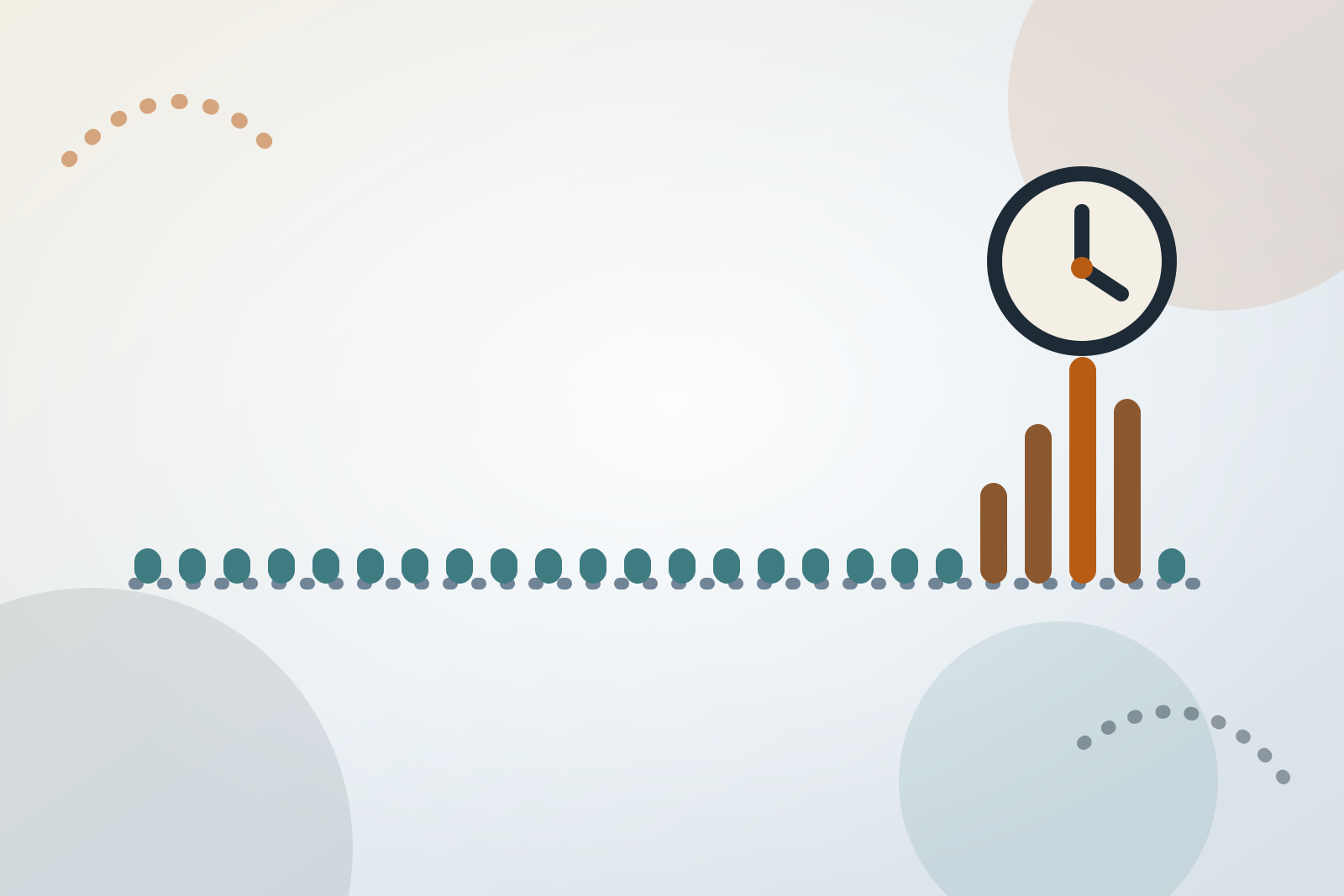
After about two weeks, group those opening times by hour. The result will not show exactly when your finger was scrolling or what you viewed. It can show when you most often enter the app, which is usually enough to identify one period worth preparing for.
Start with the usage your phone already records
On iPhone, open Settings, tap Screen Time, and turn on App & Website Activity if it is not already active. Apple says the Screen Time summary can show total use, frequently used apps, pickups, and notifications. You can select Day or Week and swipe through earlier summaries.
Check Share Across Devices before collecting data. If it is on, your report may combine activity from an iPhone, iPad, and Mac signed in to the same Apple Account. Keep that setting consistent throughout the observation period.
A pre-registered meta-analysis of 106 effect sizes found only moderate correspondence between self-reported and logged media use. Self-reports were rarely an accurate reflection of logged use. That does not make your memory worthless, but it supports letting the device count duration while you supply context.
Screen Time still has limits. It measures time in apps and websites, not scrolling movements. Time spent writing a message or watching a video may appear beside time spent moving through a feed. Treat it as an app-use total, not an exact scrolling meter.
For a broader seven-day review of pickups, entry points, and consequences, use the neutral phone-use mapping guide. This guide answers the narrower question of when openings cluster.
Create an automatic app-open timestamp
Apple documents an App trigger in Shortcuts. Its Is Opened option fires when you open or switch to a selected app.
Open Shortcuts, choose Automation, and start a new personal automation. Labels can vary slightly by iOS version, but the setup should follow this order:
- Choose the App trigger.
- Select one app where most of the unwanted scrolling begins.
- Select Is Opened.
- Choose the option that allows the automation to run immediately, if your version presents one.
- Add a Text action containing the app name and the Current Date value.
- Add Append to Note and select a dedicated note, such as “Scrolling opening times.”
- Save the automation and open the selected app twice to test it.
The resulting lines might look like:
Short videos — 24 September 2026 at 10:42pm
Search for the action names inside Shortcuts if they are not visible in the initial list. If your version asks for confirmation every time, fails to append the date, or lacks the required action, the setup is not fully automatic. Do not assume an empty note means you had no openings.
Start with one app. Add a second only if scrolling regularly begins in two distinct places. Logging eight apps produces a noisy record of ordinary phone use rather than a useful answer.
Protect the privacy and accuracy of the log
Record only the app label and time. Search terms, posts, messages, screenshots, and viewed content are unnecessary for an hourly tally and create more privacy risk.
Before starting, check:
- whether the note syncs to an account used by anyone else,
- whether note previews appear on your Lock Screen,
- whether the automation still works after an iOS update,
- whether Focus modes or other settings interrupt it,
- whether you changed time zones during the observation period.
An app opening is not necessarily a scrolling session. You might open the app to answer a message and leave immediately. Conversely, one long session may produce only one timestamp.
That is why the log should answer when openings happen, while Screen Time answers how much app use accumulated. Neither source can explain your purpose or state of mind.
Add brief context without logging every session
Automatic records cannot tell you whether an opening was planned, difficult to stop, or connected to a consequence you care about. Add one brief check-in near bedtime rather than interrupting every opening.
Shortcuts supports repeating Time of Day automations. It also supports Wind Down, Bedtime, and Waking Up triggers when a sleep schedule is configured in Health. You can use one of these triggers to open your note or display a reminder.
Answer three questions:
- Was the longest feed session deliberate or unplanned?
- What happened immediately before it?
- Did it displace sleep, work, movement, or time with someone?
A useful entry is short:
Opened after a work message around 10:40pm; stayed for short videos; bedtime moved later.
Also record evenings when the same hour passed differently. If you write context only after frustrating sessions, the record will exaggerate how consistent the pattern is.
For a fuller review of places, feelings, people, and routines, use the guide to identifying triggers and difficult times.
Never write or review entries while driving, crossing a road, or doing anything else that requires your attention.
Review openings by hour after two weeks
Two weeks is a practical observation window, not a clinical threshold. It provides two examples of each weekday while keeping the review manageable. Extend it if illness, travel, deadlines, visitors, or shift changes made the period unusual.
Create a simple table:
| Hour | Days observed | Opening events | Context |
|---|---|---|---|
| 7–8pm | 13 | 4 | Mostly deliberate messages |
| 9–10pm | 14 | 9 | Often after finishing work |
| 10–11pm | 12 | 17 | Several unplanned feed sessions |
Count the number of opening events in each hour. Then count how many days were genuinely observed. A day when the automation failed is missing data, not a day with zero openings.
Use plain counts or fractions. “Openings occurred in this hour on 7 of 12 observed evenings” is clearer than presenting a small sample as a precise forecast.
Do not infer session length by subtracting one opening time from the next. The app may have remained open, closed immediately, or been revisited between logged events. Use Screen Time for app-use duration and the timestamp log for timing.
Turn the repeated hour into one experiment
Choose the clearest repeated period and change one condition before it begins:
- silence non-essential notifications from the entry app,
- charge the phone outside the room,
- move the app away from the first Home Screen,
- decide the purpose and stopping point of the last deliberate check,
- prepare a specific activity for the gap the feed usually fills.
Write the change as an if-then plan:
If I open the video feed after 10pm, I will close it and put the phone on the shelf by the door.
Keep the timestamp automation running for another week. Compare the same measures rather than declaring success or failure after one evening.
If late scrolling is affecting sleep, NHS Every Mind Matters suggests trying not to use phones, tablets, or computers for an hour before bed. It also suggests putting the phone on silent, placing it face down to reduce light, and getting up for a restful activity if you remain awake after around 20 minutes.
If you are already caught in a long session, use the short in-the-moment sequence. If the experiment does not hold, keep the event in your record and revise the plan.
Where Hard Bit fits
Hard Bit is an optional iPhone companion for the context side of this workflow. Scrolling can have its own private record, separate from other habits.
The counter, logging, journal, milestones, hard-moment flow, help links, and export and deletion tools are free. Hard Bit Plus adds the on-device difficult-hour forecast, advance warning, patterns, calendar, widgets, and short reads.
The forecast makes no prediction below five entries and relies fully on your history at around twenty. There is no account, advertising, social feed, third-party analytics, or server copy of your entries.
Use Screen Time and the Shortcuts note for device activity. Use Hard Bit, paper, or another private log for context and the response you want to try. The Hard Bit overview explains the workflow, while the support page documents its feature and subscription boundaries.
Know when tracking is no longer helping
Stop or simplify the exercise if it becomes another checking loop, increases shame, or makes you watch the numbers without changing anything useful.
Consider qualified support if scrolling repeatedly interferes with sleep, work, study, caring responsibilities, relationships, or mental health. If the phone is mainly an entry point to gambling, harassment, coercion, or another problem with specific risks, seek support for that issue rather than relying only on a timing log.
Contact emergency services or a local crisis service if you are in immediate danger or thinking about harming yourself. The Daily Life Apps editorial policy explains how health and product information is reviewed.
Frequently asked questions
Does this measure scrolling exactly?
No. Screen Time records app or website use, and the automation records app openings. Neither confirms that you were moving through a feed. Use the data as a practical proxy and add context before deciding that an hour is difficult.
Can Screen Time show exactly when I used an app?
Apple documents Day and Week summaries, app use, pickups, and notifications. Available chart detail can vary by iOS version. The Shortcuts log supplies opening times when the built-in report does not provide enough timing detail.
Does the method work on Android?
The review method does, but this automation walkthrough is specific to iPhone. Android reporting and automation capabilities vary by manufacturer and software version, so use instructions for your particular device rather than copying the iPhone steps.
What if the automation misses an opening?
Mark that period as unobserved. Test the automation again, check that it remains enabled, and avoid filling the gap from memory. Missing data should not be counted as a clear hour.
Is two weeks enough to establish a pattern?
It is enough to form a useful question, not a permanent rule. Continue observing if the fortnight was unusual or the counts are sparse. Treat the result as a pattern to test, not a prediction about what you will do.